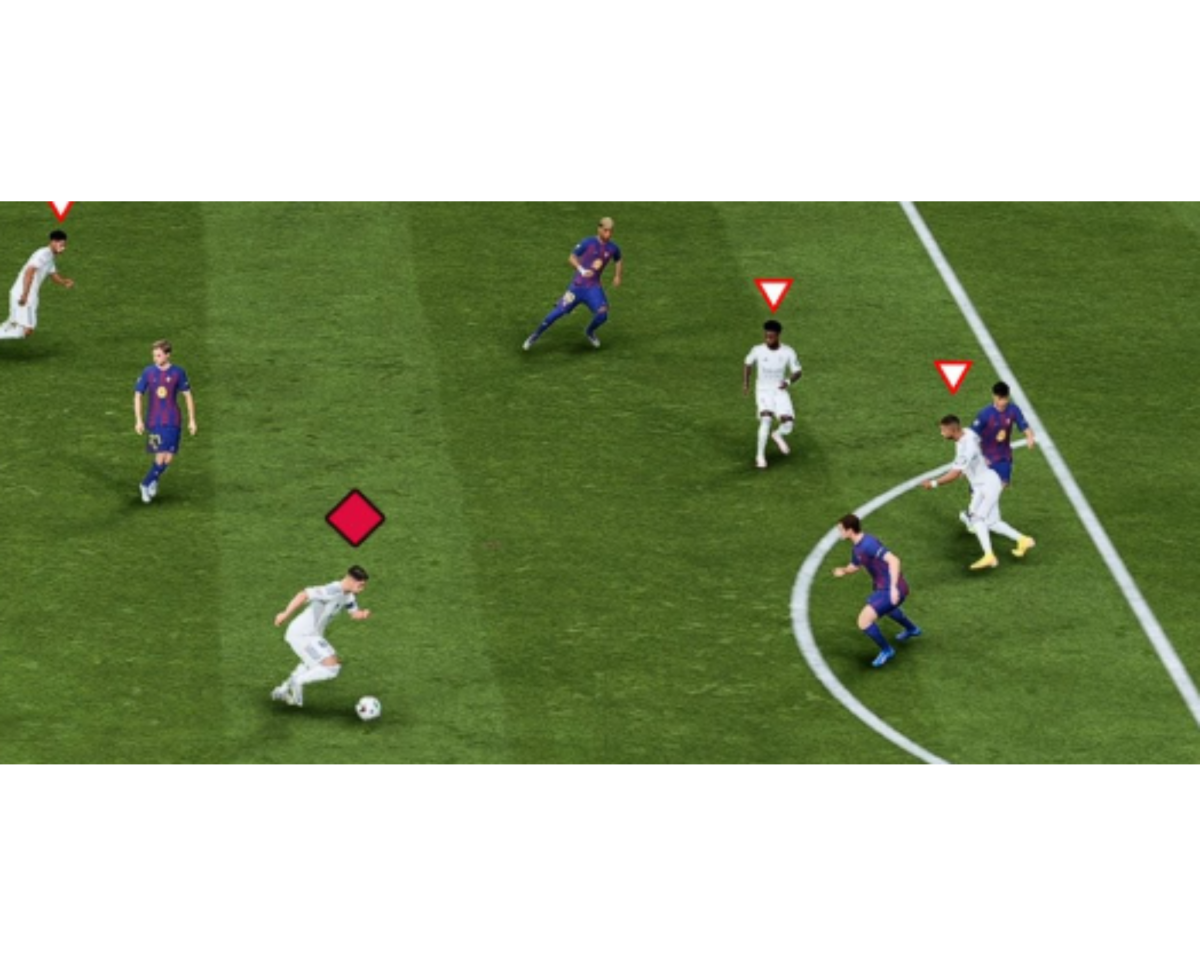
Player Lock is one of the most powerful yet often underutilized mechanics in FC 26, offering advanced control over your attacking movements. By manually controlling an off the ball player while the AI manages the ball carrier, you can create dynamic runs, open up defenses, and exploit space that the automatic AI runs might miss. Mastering Player Lock is a key differentiator for competitive players. Here is your step by step guide to executing and effectively using this skill.
Ensure Player Lock is Enabled
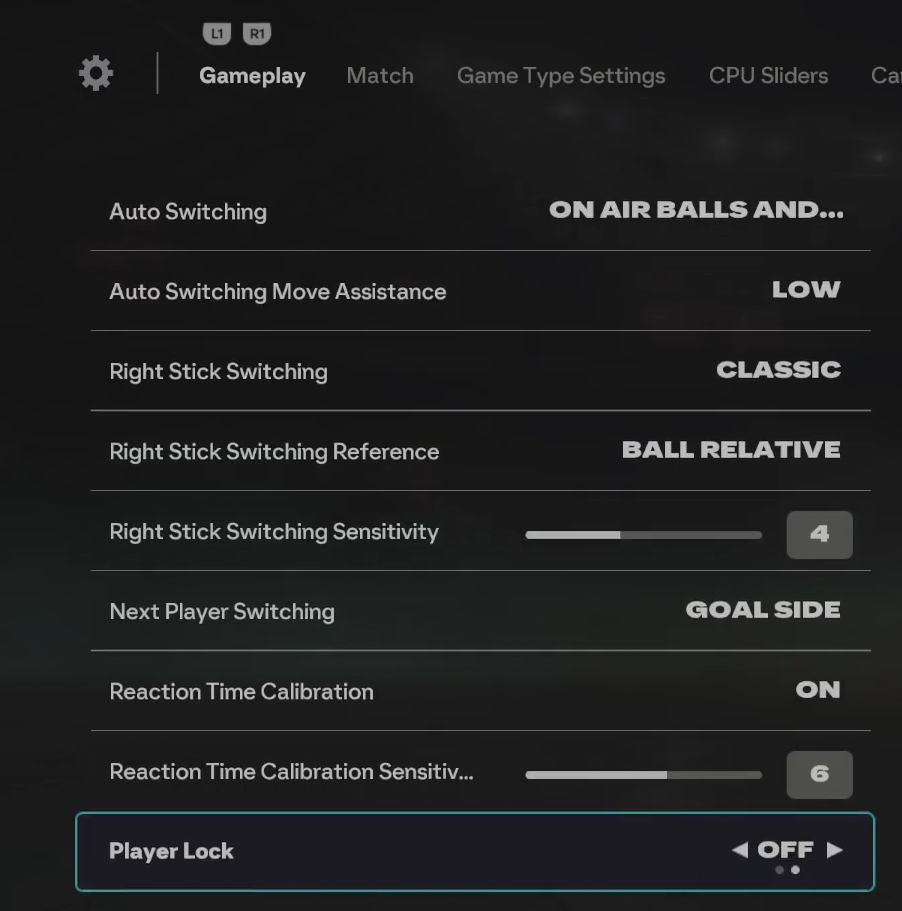
Before attempting the move, you need to confirm the feature is active in your game settings, as a bug or a previous setting change might have disabled it.
Go to Settings from the Main Menu.
Navigate to Game Settings > Gameplay.
Scroll down to the Switching section.
Find Player Lock and ensure it is set to On.
Activating Player Lock (Controls)
The activation is the same across both major consoles (PlayStation and Xbox) and is performed while you are in possession of the ball:
| Console | Controller Input |
| PlayStation | Press L3 + R3 (Click ion both Left and Right Analog Sticks) |
| Xbox | Press LS + RS (Click on both Left and Right Analog Sticks) |
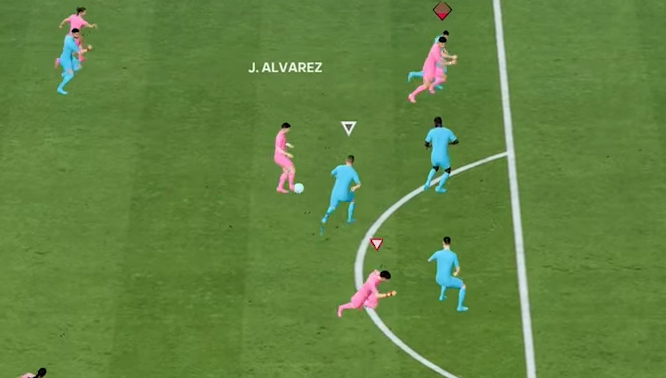
Once activated, a white marker will appear above the ball carrier (your current player). The AI will take over control of the ball carrier, and you will retain control of the off the ball player who will soon receive the pass.
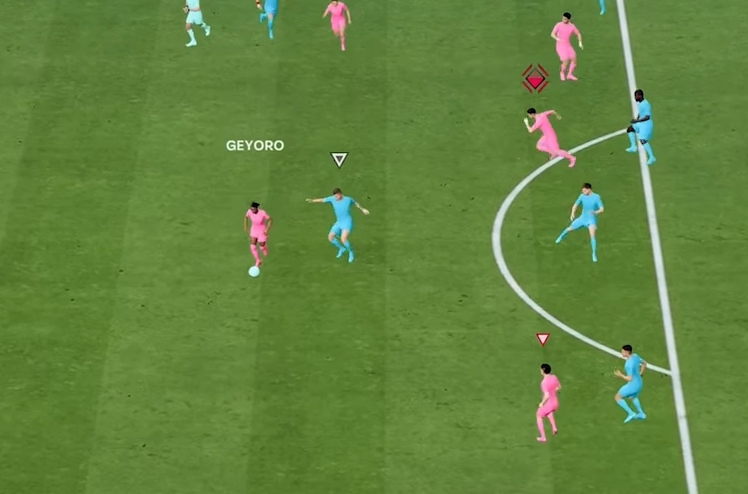
Immediately after activating Player Lock, you must choose which off the ball teammate you want to control. Flick the Right analog stick to the teammate you want to control. Hesitate for a half second after pressing the sticks before flicking the right stick. This can help prevent accidentally selecting the wrong player, which is a common mistake for beginners.
Making the Manual Run and Calling for the Pass
Once the control is locked onto your selected teammate, you can now execute your manual run. Use the Left Analog Stick (L3/LS) to direct your selected player into the desired space. This allows you to pull defenders, make a run in behind, or drift into a clear passing lane. Once your controlled player is in a strong position, press the button for the pass type you want the AI controlled ball carrier to play.
Cancelling Player Lock
There are two primary ways to exit the Player Lock state. Once the pass is made, you will automatically switch control to the player who receives the ball. To Regain Control, if you change your mind and wish to abandon the Player Lock to control the ball carrier again, simply press the activation buttons one more time: L3 + R3 / LS + RS.
Create Runs in Behind, the most common and effective use is to manually run a forward onto the shoulder of the last defender and play a through ball. This creates a high percentage scoring chance. You can activate Player Lock, move your player a short distance, and then pass normally (without selecting a receiver first). You will now control the player who made the initial pass, allowing you to manually complete a one two, which is often faster and more precise than an automatic one two. Don’t Sprint Immediately, the ball carrier is vulnerable while the Player Lock is active. Avoid sprinting with the ball carrier right before or during the initial activation. Practice in the Arena, player Lock requires muscle memory and quick decision making. Spend time in the Practice Arena to get the controls down and train your eye to spot the open spaces you can create.