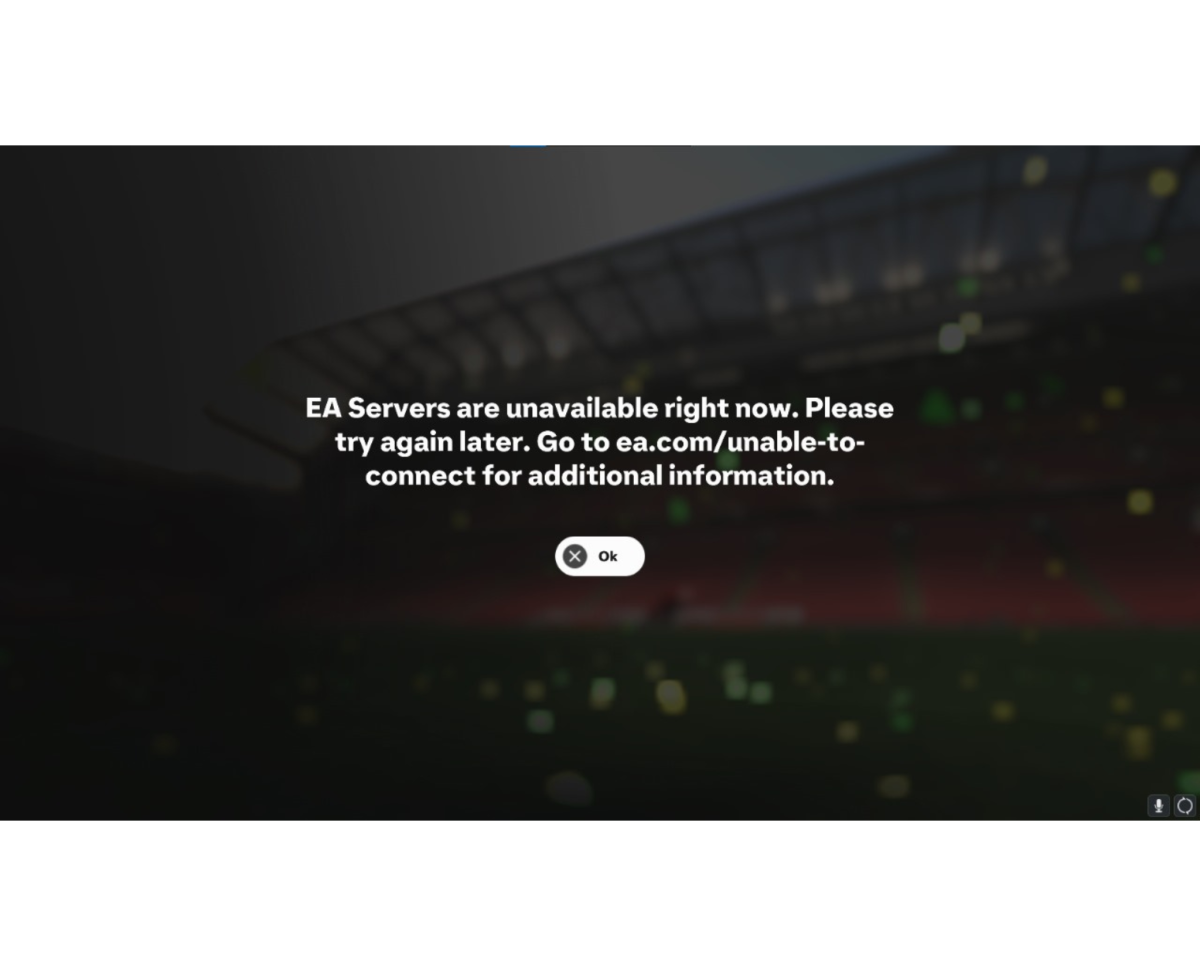
Experiencing an inability to connect to FC 26? Whether you’re locked out of Ultimate Team, Clubs, or an online match, a downed server is often the culprit. Yesterday many services had gone due to an issue with AWS. As of the current time, the overall server status is reported as functional. However, individual server outages, platform specific maintenance, or high traffic during peak hours (especially around new promo releases) can cause temporary connection issues. Here is your essential guide on how to check the server status and the steps you should take to get back in the game.
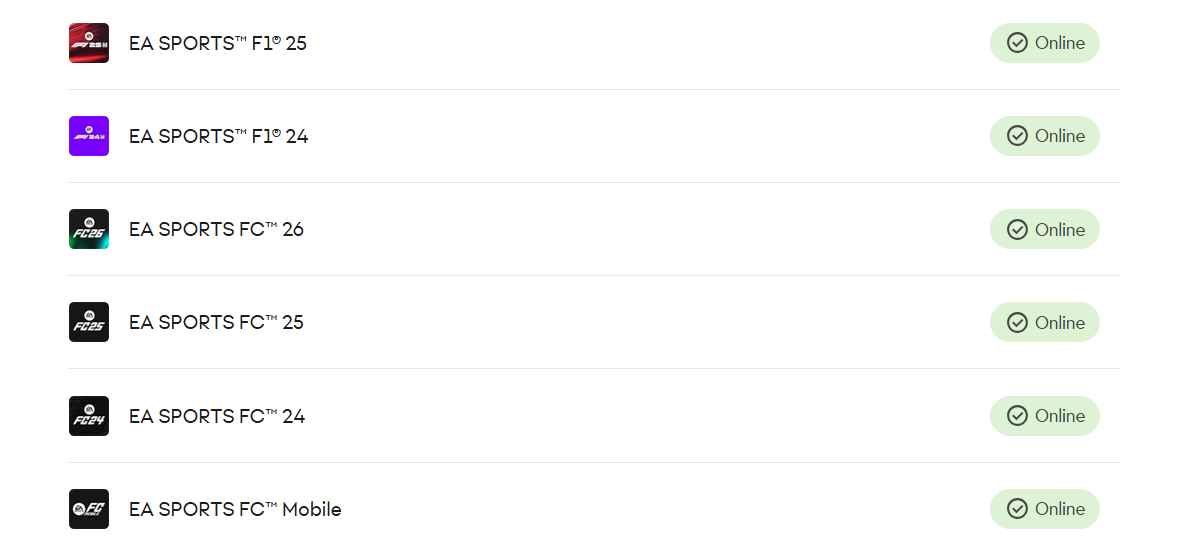
Before diving into troubleshooting your own system, the first and most crucial step is to confirm the official server status. This will save you a lot of time if the issue is on EA’s end. The most reliable source is always the official one. Visit the EA Help Server Status website. EA maintains a dedicated page listing the current online status for its major titles across all platforms (PlayStation, Xbox, PC). This page will clearly indicate if the servers are Online, Limited, or Down for your specific platform.
EA’s customer service and development teams often communicate outages and maintenance via social media. Follow https://x.com/EASFCDirect this account is typically the first to announce planned maintenance or confirm widespread outages. Search their recent posts for official updates. A sudden surge of player reports can quickly confirm a widespread issue.
Check dedicated EA FC community forums and Reddit such as r/fut. If many players are posting about the same connection error within the last few minutes, it’s highly likely to be a server side problem. Use third party sites like Downdetector. These sites track user submitted reports of outages for various services, including EA. A significant spike in reports is a strong indicator of server issues.
If you’ve confirmed an official outage or scheduled maintenance, the only solution is to wait. Server downtime, whether planned for updates or unplanned due to an issue, is resolved by EA. Keep an eye on the official channels for an All Clear or an estimated time for the servers to be back online.
If the official status confirms the servers are up, the issue is likely on your end. Here are the steps to troubleshoot your connection. Restart the Game completely close FC 26 and relaunch it if that does not work, restart your Console/PC a full system reboot can resolve many temporary glitches. Alternatively if it is a net issue, Power Cycle Your Router/Modem. Turn off your router and modem > Unplug both devices for at least 60 seconds > Plug them back in and wait until they are fully connected (all indicator lights are normal). > Restart your game device and try again.
Ensure no other devices are heavily streaming, downloading, or running bandwidth intensive applications while you are playing. If you are using Wi-Fi, switch to an Ethernet cable if possible. A wired connection is always more stable, reducing latency and packet loss, which can cause disconnections. Run an internet speed test. A slow or unstable connection can prevent proper authentication with the game servers.
In the EA App, Steam, or Epic Games launcher, you can find an option to Repair or Verify Integrity of the game files. This checks for and replaces any corrupted data. Ensure your firewall or antivirus software is not blocking the EA App or the EA FC 26 executable file. You may need to add them to your exceptions list.
For consoles, fully shut down the console (not Rest/Sleep mode), unplug the power cable for 2 minutes, then plug it back in and restart. This often clears the console’s network cache. Verify the status of your platform’s network (PlayStation Network or Xbox Live) as outages there can affect your ability to connect to any online game.
If all troubleshooting steps fail, your best bet is to contact EA Help support with details of your error message and the steps you have already taken.