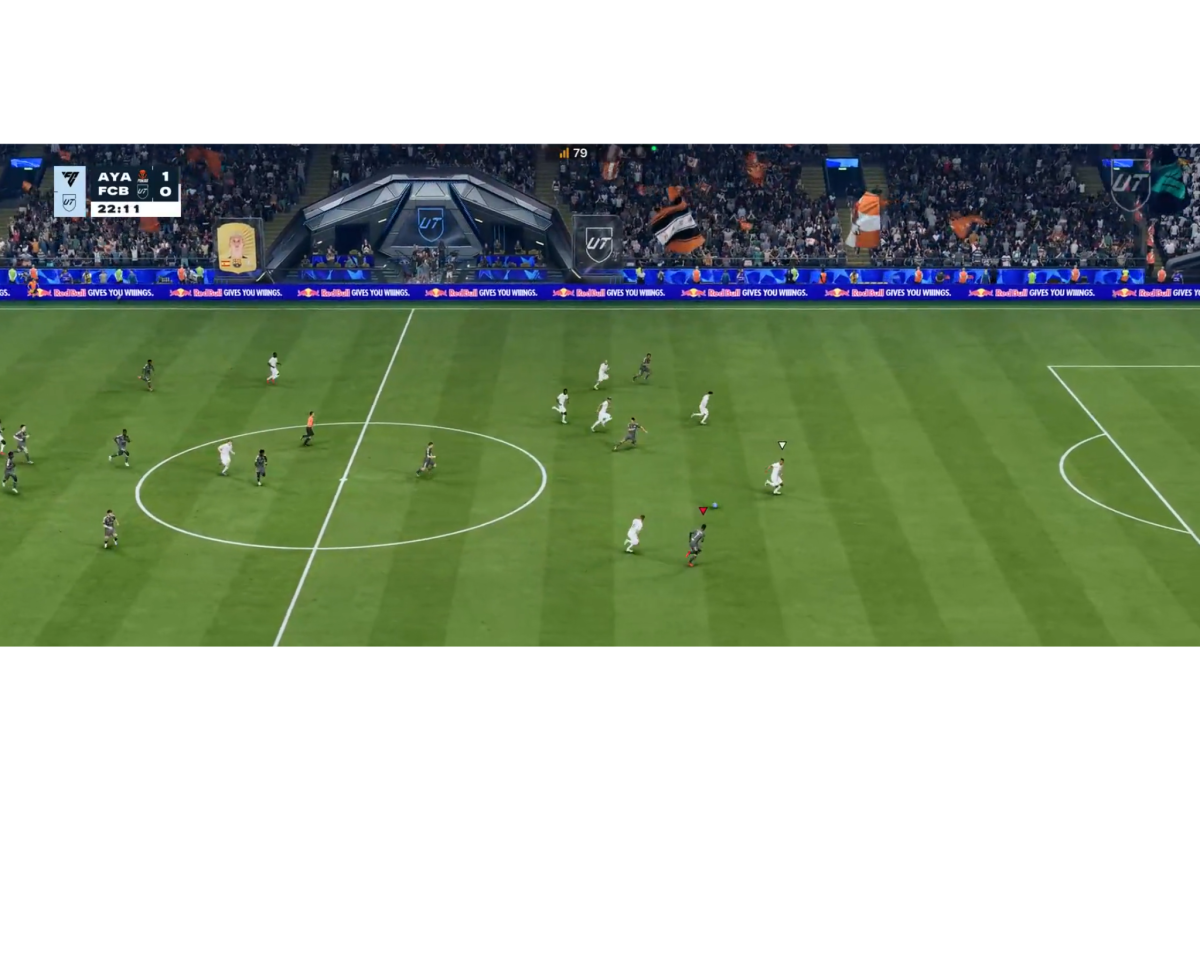
Experiencing lag in a fast paced game like FC 26 can turn a thrilling match into a frustrating experience that can cost you an important goal or chance. Whether it’s sudden stuttering (frame rate lag) or delayed button responses (online delay/input lag), a smooth experience is essential for competitive play. This year there have been many issues for users facing high ping on consoles and users on PC have been complaining about FPS drops despite having high end PC’s due to EA’s anti cheating system causing high CPU overload. Fortunately, there are several steps you can take to optimize your system and network connection.
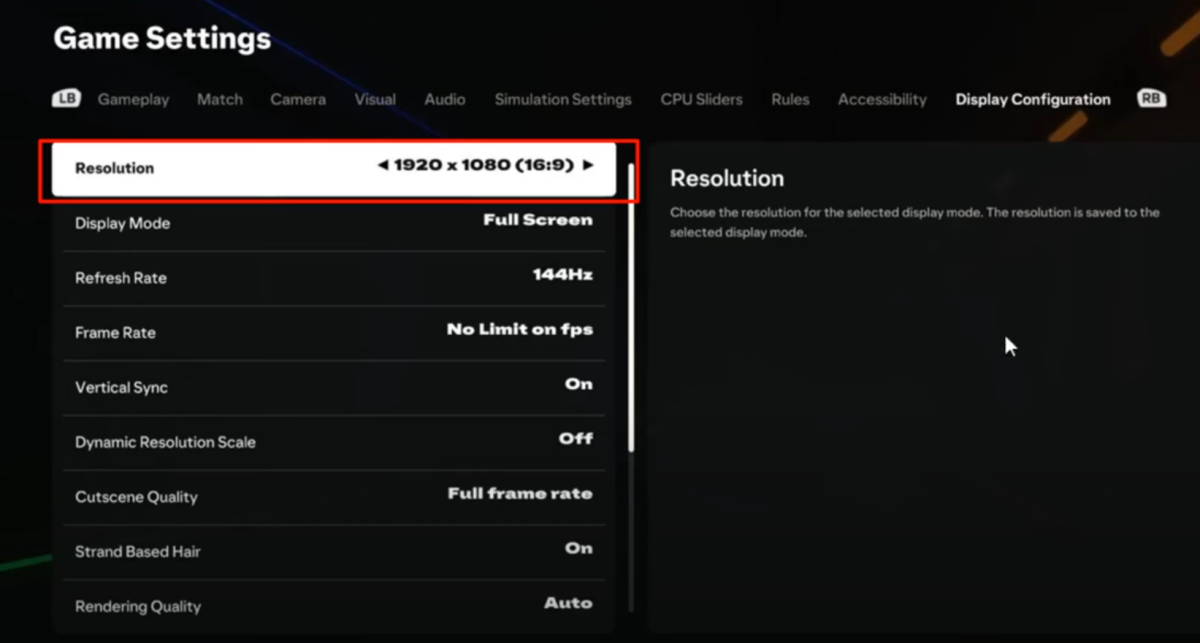
Frame rate lag often occurs when your system struggles to keep up with the game’s graphical demands. These adjustments can help your PC or console run the game more efficiently.Decreasing the resolution (e.g., from 4K to 1080p) significantly reduces the number of pixels your system has to process. Lower settings for grass quality, crowd detail, and effects like bloom or depth of field can free up considerable resources.
Disable V-Sync, while V-Sync prevents screen tearing, it can introduce input lag. Try disabling it to see if performance improves. If you still experience tearing, consider using an adaptive sync technology like G-Sync or FreeSync if your monitor supports it. On PC, applications running in the background (browsers, streaming services, voice chats like Discord, etc.) consume CPU and RAM. Close all unnecessary programs before launching FC 26 if your PC is ramping up the fans or unable to support multiple apps at once.
This is the single most important step for online stability. Wi-Fi is susceptible to interference and fluctuating bandwidth, while an Ethernet cable provides a faster, more stable connection with lower latency. Some networking issues can be resolved by Port Forwarding specific network ports for the game on your router. You’ll need to consult EA’s official support site or your console’s support page for the exact ports FC 26 uses.
Here are some other ways you can tackle this problem for console users using these steps you can find on your console settings:
For Playstation users: Turn off the console > hold the power button until the second button, connect your controller to the console with a Type C cable> scroll down to Rebuild System Database/Clear System Cache( you can only do that via dpad) and then choose any of the two options.
For Xbox users: Click on the home button> navigate to settings> Devices and Connections> BluRay> Persistent Storage> Clear Persistent Storage or Open settings > go to console info in the system tab > reset console but keep your games and apps.
By systematically working through these steps first optimizing your graphical settings for frame rate, then securing a stable, Ethernet connection for online play. You can significantly reduce lag and enjoy a much smoother, more responsive FC 26 experience.